Article
Speech to Text on a Mac Laptop Using the Internal Mic
First, get Macspeech Dictate. It's available for sale at www.macspeech.com, and you can save 10% on MacSpeech Dictate with Microphone by using coupon MACSPEECH during checkout. Once its loaded up it will ask you to create a profile by selecting a microphone. The stock Dictate application will not let you select your internal mic to be used as an audio input source. To get around this, we have to download two applications, the latest version of Soundflower from http://code.google.com/p/soundflower/downloads/list and LineIn from http://rogueamoeba.com/freebies/.
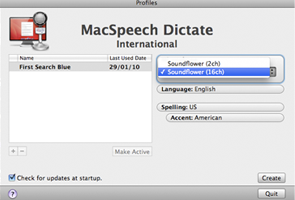
Install Soundflower and launch both applications along with Macspeech Dictate. If we go back to Dictate we can select "Soundflower 16ch" as depicted below.
Now go to LineIn and route the internal mic to Sounflower we select "Default System Input" and Output " Soundflower (16ch)" then click "Pass Thru".
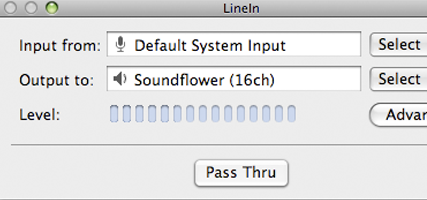
Keep all these applications open and go back to Dictate and create your profile. Follow the rest of the steps in Dictate and this should allow you turn speech to text using your Mac Laptop's internal Mic.